
Build Your Own Private AI Assistant for Calendar, Email, and Tasks
Learn how to create a privacy‑first personal AI agent that automatically handles your calendar, email, and to‑do list using open‑source LLMs and modern automation tools.
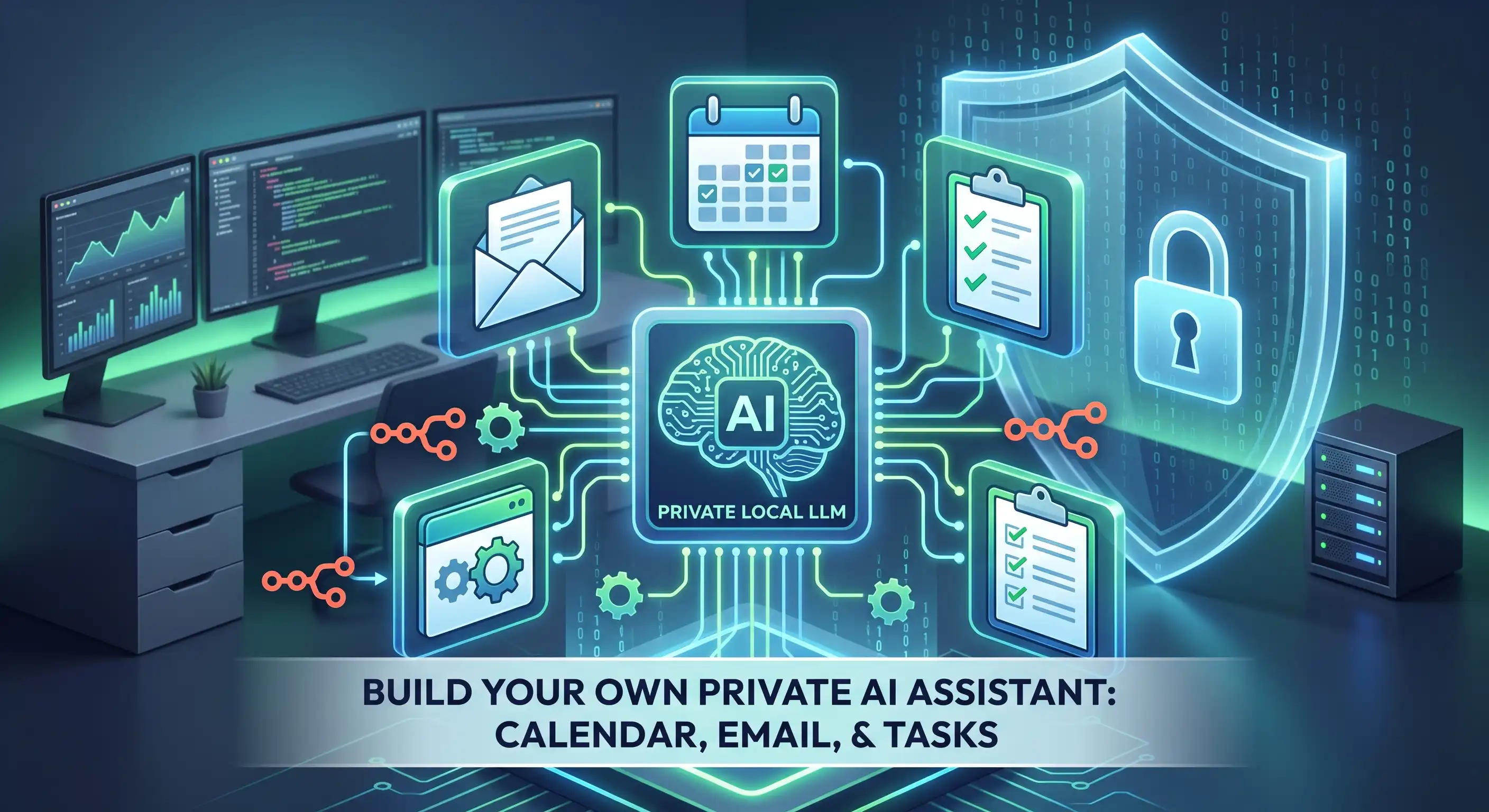
Why a Personal AI Agent Makes Sense Today
Artificial intelligence assistants have gone mainstream. Products from big tech are now capable of drafting emails, scheduling meetings, and reminding you of deadlines. While convenient, those services sit in the cloud, collect data, and often lack the custom workflows that power users need. Building your own AI agent gives you three key advantages: privacy, customizability, and ownership. You keep your inbox and calendar data on your own machine or trusted server, you can tailor the agent’s behavior to your exact work style, and you avoid vendor lock‑in.
This guide walks you through a complete, step‑by‑step implementation using the latest open‑source large language models (LLMs) and automation platforms such as Notion, Zapier, and n8n. By the end, you’ll have a personal AI that can read your inbox, suggest replies, propose meeting times, and keep your task list up to date—without ever sending your data to a third‑party API.
Overview of the Architecture
At a high level the system consists of three layers:
- LLM Core: An open‑source model (e.g., Llama 3, Mistral, or Phi‑3) running locally or on a private VPS.
- Automation Engine: A workflow orchestrator (n8n or Zapier) that connects the LLM to your everyday tools.
- Data Connectors: Secure adapters for Gmail/Google Calendar, Microsoft Outlook, or any CalDAV/IMAP service.
The LLM receives a structured prompt, generates a response, and the automation engine translates that response into actions (send an email, create a calendar event, update a task list). All communication stays inside your network or encrypted tunnel.
Choosing the Right LLM
For personal use you want a model that balances capability with resource demands. The following options are popular in 2024:
- Llama 3 8B – runs comfortably on a modern laptop with a 12 GB GPU.
- Mistral‑7B‑Instruct – optimized for instruction following, low latency.
- Phi‑3 Mini – smallest footprint, excellent for short‑form tasks like email drafting.
All three are available under permissive licenses and can be downloaded from Hugging Face. Pick the one that matches your hardware budget.
Why n8n Over Zapier (and Vice‑versa)
Zapier offers a massive library of pre‑built integrations and a generous free tier, but it is a hosted service. If you need complete data sovereignty, n8n can be self‑hosted on Docker or a cheap VPS. Both platforms support webhooks, which we’ll use to call the LLM endpoint.
Step 1: Set Up the Local LLM Server
We’ll use ollama, a lightweight tool that wraps LLMs behind a simple HTTP API. It works on Windows, macOS, and Linux.
# Install Ollama (macOS example)
brew install ollama
Pull the model you chose (example: llama3)
ollama pull llama3
Start the server
ollama serve &
Once running, you can test the endpoint with curl:
curl -X POST http://localhost:11434/api/generate \
  -d '{"model":"llama3","prompt":"Write a friendly reply to: \"Can we move our meeting to 3 pm?\""}'
The response will be a JSON object containing the generated text. Keep this server running; n8n will call it whenever a workflow needs AI assistance.
Securing the Endpoint
Because the LLM may handle sensitive content, protect the API with a token:
# Generate a random token
export OLLAMA_TOKEN=$(openssl rand -hex 16)
Start Ollama with the token required
ollama serve --auth-token $OLLAMA_TOKEN
Store $OLLAMA_TOKEN in your workflow’s secret manager so it never appears in plain text.
Step 2: Connect Your Email and Calendar
We’ll illustrate the Gmail/Google Calendar combo, but the same logic applies to Outlook or any IMAP/CalDAV service.
Creating OAuth Credentials
1. Go to the Google Cloud Console.
2. Enable the Gmail API and Google Calendar API.
3. Create an OAuth 2.0 Client ID (Desktop app) and download the credentials.json file.
4. In n8n, add a Google OAuth2 credential using that file; the platform will handle token refresh automatically.
Fetching Unread Emails
In n8n, create a new workflow with a Google Gmail node set to “List Messages” and filter by is:unread. Connect the node to a Function node that extracts the subject, sender, and body snippet.
// Example JavaScript in n8n Function node
const email = items[0].json;
return [{
  json: {
    subject: email.payload.headers.find(h => h.name === 'Subject').value,
    from: email.payload.headers.find(h => h.name === 'From').value,
    snippet: email.snippet,
    threadId: email.id,
  }
}];
This structured payload will be sent to the LLM for analysis.
Proposing Calendar Slots
When the LLM decides a meeting is needed, it returns a JSON block with suggested times. Use a Google Calendar node in n8n to create an event based on those slots. The node can also add conference links (Google Meet) automatically.
Step 3: Building the Prompt Template
The quality of the AI’s output hinges on a clear, consistent prompt. Store the template in a Text node so you can edit it without touching code.
You are a personal productivity assistant. Use the information below to perform ONE of the following actions:
- Draft a concise reply to the email.
- Suggest up to three meeting times based on the sender’s availability.
- Create a task entry for a to‑do.
Email:
Subject: {{subject}}
From: {{from}}
Snippet: {{snippet}}
Respond with a JSON object:
{
"action": "reply" | "schedule" | "task",
"content": "",
"suggested_times": ["2024-09-26T14:00:00Z", ...] // only for schedule
}
n8n’s Mustache syntax (the double curly braces) fills in the actual email data. The LLM will return a small JSON payload that the workflow can parse.
Parsing the LLM Response
Add a JSON Parse node after the HTTP request to the LLM. Then use a Switch node to route the flow based on the action field.
- reply →
Gmail Sendnode withcontentas the body. - schedule →
Google Calendar Createnode usingsuggested_times. - task →
Notion Create Pageor any task manager you prefer.
Step 4: Automating Task Management
Many users rely on a single source of truth for tasks—Notion, Todoist, or Microsoft To Do. The workflow below shows a Notion example.
Creating a Notion Database for Tasks
1. In Notion, add a new database called “Inbox Tasks”.
2. Note the database ID from the URL.
3. In n8n, create a Notion credential with your integration token.
4. Use a Notion Create node, mapping the LLM’s content to the “Name” field and adding a “Status” property set to “Pending”.
Bidirectional Sync (Optional)
If you want the AI to update tasks when you mark them complete, add a Notion Trigger that fires on “Status” changes. The trigger can feed back into the LLM to generate a brief “completion note” that gets appended to the original email thread.
Step 5: Scheduling the Workflow
Running the automation continuously ensures you never miss a message. Two common strategies:
- Polling: Use n8n’s built‑in “Cron” node to check Gmail every 5 minutes.
- Push: Enable Gmail’s watch API to receive push notifications via a webhook endpoint. This reduces latency to seconds.
For most home users, the simple polling approach is sufficient and easier to set up.
Testing the End‑to‑End Flow
1. Send a test email to your Gmail address.
2. Wait for the workflow to trigger.
3. Verify that the AI either drafts a reply, creates a calendar event, or adds a task.
4. Check the Execution Log in n8n for any parsing errors.
If something goes wrong, isolate the step by disabling downstream nodes and re‑run the workflow manually.
Step 6: Enhancing Privacy and Security
Even though the LLM runs locally, you should still follow best practices:
- Encrypt at rest: Store credentials and token files in an encrypted volume (e.g.,
BitLockerorFileVault). - Network isolation: Run the LLM and n8n inside a Docker network that blocks outbound traffic except for essential updates.
- Audit logs: Enable n8n’s execution logs and rotate them daily. Review them for unexpected data flows.
- Model updates: Periodically pull newer model checkpoints from trusted sources. Verify checksums before installing.
These steps keep the system robust against accidental leaks while still offering the convenience of AI‑driven automation.
Putting It All Together: A Sample Workflow Diagram
1️⃣ Gmail → 2️⃣ Function (format) → 3️⃣ HTTP (LLM) → 4️⃣ JSON Parse → 5️⃣ Switch (action) → 6️⃣ Gmail Send / Calendar Create / Notion Create → 7️⃣ Log & Mark as Read
The diagram above captures the linear flow. You can expand it with additional branches—e.g., a “summarize weekly inbox” job that runs every Friday and posts a digest to a Slack channel.
Next Steps and Customizations
Now that you have a working personal AI, consider these upgrades:
- Multilingual support: Load a multilingual model like Mistral‑7B‑V0.2 and add language detection in the prompt.
- Voice interface: Pair the LLM with an open‑source speech‑to‑text engine (e.g., Whisper) and a text‑to‑speech service to talk to your assistant on a smart speaker.
- Context memory: Store recent interactions in a tiny vector database (e.g.,
Qdrant) and prepend relevant snippets to each prompt. - Advanced scheduling: Integrate a constraint‑solver like
OptaPlannerto handle complex meeting rules (time zones, room capacity).
Each addition follows the same pattern: a new node in n8n that prepares data, calls the LLM, and acts on the response. Because the architecture is modular, you can experiment without breaking the core assistant.
Conclusion
Building a private AI agent for calendar, email, and task management is no longer a research‑lab project. With open‑source LLMs, user‑friendly automation platforms, and robust OAuth connectors, anyone can assemble a trustworthy personal assistant that respects data privacy while boosting productivity. The steps outlined here give you a solid foundation; from there, iterate, personalize, and watch your digital life become smoother, one automated interaction at a time.
How do I keep my AI assistant up to date without exposing my data?
Run model updates on an isolated machine, verify checksums, and replace the local model binary. Because the LLM never contacts external services during normal operation, your email and calendar data remain on your network.
Related posts
View allLeveraging GPT‑4 Turbo for Real‑Time Customer Support Automation
Discover a step‑by‑step guide to integrate OpenAI’s GPT‑4 Turbo into ticketing platforms, enabling fast, cost‑effective real‑time support while scaling smoothly as demand grows.
Building Multi‑Modal AI Assistants with OpenAI’s GPT‑4 Turbo: A Step‑by‑Step Guide
OpenAI’s GPT‑4 Turbo now supports images, enabling developers to craft multi‑modal AI assistants that boost productivity. Follow this practical guide to integrate vision, text, and tool use into your apps today.
Turbocharge Your Small Business with OpenAI’s GPT-4 Turbo API
Discover how small businesses can integrate OpenAI’s new GPT-4 Turbo API to automate routine tasks, cut costs, and boost productivity—step by step.
Comments (0)
Be the first to share feedback on this post.