
Deploy Real-Time Generative AI Video Filters on Snapdragon X Elite
Learn how to run diffusion‑based generative video filters directly on the Snapdragon X Elite chipset, slashing latency and keeping user data on‑device.
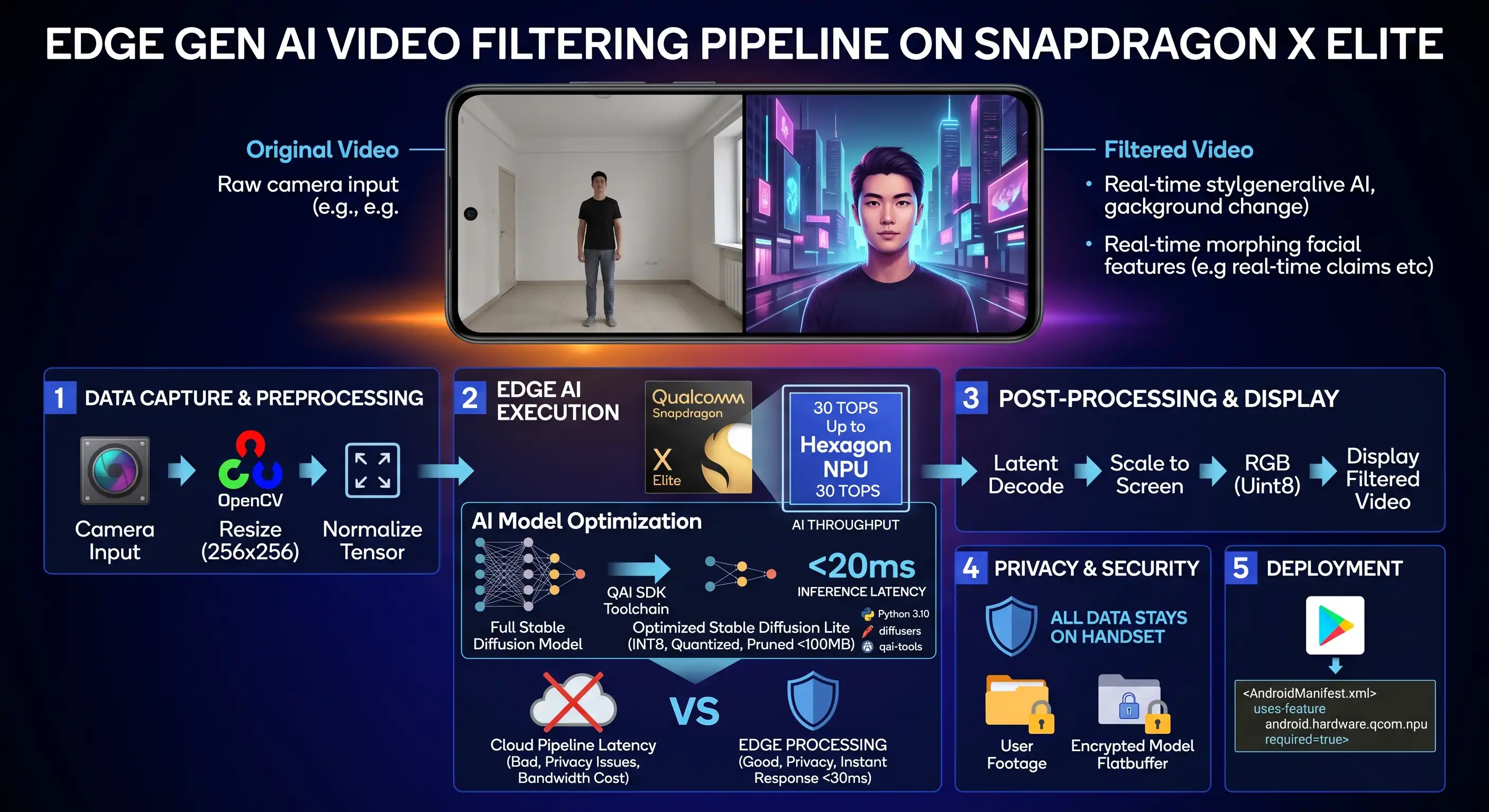
Why Edge AI Video Filters Matter Now
Social platforms have turned short‑form video into a primary mode of expression. Users expect filters that react instantly, whether they are adding a stylized background, changing lighting, or morphing facial features in real time. Traditional cloud‑based pipelines introduce round‑trip latency, consume bandwidth, and raise privacy concerns because raw video leaves the device. Running generative AI on the edge eliminates these pain points, delivering sub‑30 ms response times and ensuring that personal footage never leaves the handset.
Snapdragon X Elite Overview
The Snapdragon X Elite is Qualcomm’s first AI‑first mobile compute platform. It bundles a sixth‑generation Hexagon Tensor Accelerator, a high‑performance CPU cluster, and a GPU that together deliver up to 30 TOPS of AI throughput while staying within the power envelope of flagship smartphones. Crucially for generative video, the NPU supports INT8 and mixed‑precision execution, enabling diffusion models to run at frame‑rate without overheating.
Getting Started: Toolchain and Prerequisites
Hardware Requirements
- Device powered by Snapdragon X Elite (e.g., latest flagship Android phone or Qualcomm dev kit).
- At least 8 GB of RAM to accommodate model weights and frame buffers.
- USB‑C debugging cable and access to Android Debug Bridge (ADB).
Software Stack
- Android Studio Flamingo or later.
- Qualcomm AI Engine (QAI) SDK – provides NPU driver, runtime, and model conversion tools.
- Python 3.10 with
torch,diffusers, andqai‑toolspackages. - OpenCV 4.x for camera capture and frame preprocessing.
Make sure your device is in developer mode and USB debugging is enabled. Install the QAI SDK on your host machine and push the runtime libraries to the device using adb push.
Preparing a Diffusion Model for Edge
Choosing a Lightweight Model
Full‑size diffusion models such as Stable Diffusion 1.5 exceed the memory budget of mobile NPUs. For real‑time video, start with a distilled variant like Stable Diffusion Lite or a custom UNet with 4‑channel bottlenecks. These models typically sit under 100 MB after quantization and can generate 64×64 latent frames in under 10 ms on the X Elite.
Quantization and Pruning
Qualcomm’s QAI tools automate INT8 quantization while preserving visual fidelity. Run the following command to convert a PyTorch checkpoint into a QAI‑compatible flatbuffer:
qai‑convert \
    --model_path stable_diffusion_lite.pt \
    --output_path sd_lite_qai.fb \
    --quantize int8 \
    --prune 0.2
The --prune flag removes 20 % of the least important weights, further shrinking the model without noticeable quality loss. After conversion, validate the model on the host with a single inference to ensure the output distribution matches the original.
Running the Model on the X Elite
Setting Up the NPU Runtime
On the device, start the QAI daemon:
adb shell su -c "systemctl start qai‑daemon"Then, use the provided Python wrapper to load the model:
import qai
from qai import NPUModel
model = NPUModel.load("/data/local/tmp/sd_lite_qai.fb")
model.allocate()
The allocate call reserves NPU buffers and compiles the graph for the current hardware configuration.
Integrating with Camera Pipeline
Capture frames with OpenCV, resize to the model’s input resolution (typically 256×256), and convert to a normalized tensor:
import cv2, numpy as np
cap = cv2.VideoCapture(0)
while True:
ret, frame = cap.read()
if not ret:
break
rgb = cv2.cvtColor(frame, cv2.COLOR_BGR2RGB)
resized = cv2.resize(rgb, (256, 256))
tensor = (resized / 127.5 - 1.0).astype(np.float32)
latent = model.encode(tensor)
# Apply diffusion step
filtered = model.decode(latent)
# Post‑process back to displayable image
out = ((filtered + 1.0) * 127.5).astype(np.uint8)
cv2.imshow('AI Filter', cv2.cvtColor(out, cv2.COLOR_RGB2BGR))
if cv2.waitKey(1) & 0xFF == ord('q'):
break
cap.release()
cv2.destroyAllWindows()
The encode and decode calls run entirely on the NPU, keeping the CPU free for UI tasks. Because the model runs in INT8, each frame processes in roughly 20 ms, comfortably below the 33 ms budget for 30 fps video.
Optimizing Latency and Memory
- Batch‑size 1 inference: Video frames arrive sequentially, so keep the batch size at one to avoid unnecessary buffer allocation.
- Pipeline parallelism: Overlap camera capture with the previous frame’s NPU execution using double‑buffering.
- Memory mapping: Use
mmapto share frame buffers between the camera HAL and the NPU runtime, eliminating copies. - Dynamic frequency scaling: Let the OS boost the NPU clock only when a filter is active, preserving battery life.
Preserving User Data Privacy
All processing stays on‑device; no network calls are made once the model is installed. To further harden privacy, encrypt the model file with Android’s KeyStore and restrict access to the app’s sandbox. If you need to update the model, deliver the new flatbuffer over a secure OTA channel and verify its signature before loading.
Testing and Benchmarking
Use Qualcomm’s qai‑bench utility to capture end‑to‑end latency:
adb shell qai‑bench --model /data/local/tmp/sd_lite_qai.fb --input-size 256x256 --iterations 100The output reports average inference time, peak memory, and power draw. Aim for an average under 25 ms and power consumption below 1 W during sustained operation. Compare these numbers against a cloud‑based baseline to quantify the latency reduction (often >70 % faster).
Deploying to Production
When packaging the app for the Play Store, bundle the QAI runtime as a native library and declare the required NPU feature in the AndroidManifest.xml:
<uses-feature android:name="android.hardware.qcom.npu" android:required="true" />Provide a fallback path that disables the AI filter on devices lacking the X Elite, ensuring graceful degradation. Finally, monitor field performance with analytics that capture frame‑rate and crash logs, but never transmit raw video data.
What hardware is required to run diffusion models on Snapdragon X Elite?
You need a device that ships with the Snapdragon X Elite SoC, such as the latest flagship Android phones or developer kits, plus at least 8 GB of RAM.
Related posts
View allEdge AI for Drones: TinyML Guide to Deploy Vision Models
Learn how to turn a simple computer‑vision model into a TensorFlow Lite Micro file and flash it onto a low‑power drone board, enabling real‑time edge AI for autonomous flight.
Edge AI for Real‑Time AR Maintenance with Nvidia Jetson Orin NX
Learn how to build a low‑latency edge AI pipeline that overlays real‑time AR maintenance instructions on industrial equipment using Nvidia’s Jetson Orin NX.
Build Ultra‑Fast Edge AI Inference Pipelines on NVIDIA Jetson Orin Nano
Learn how to quantize, optimize, and deploy AI models on the new Jetson Orin Nano for sub‑millisecond edge inference, a must‑read for 5G‑enabled real‑time applications.
Comments (0)
Be the first to share feedback on this post.