
How to Convert JPG, PNG & GIF to WebP (Free Tool, 25–80% Smaller Files)
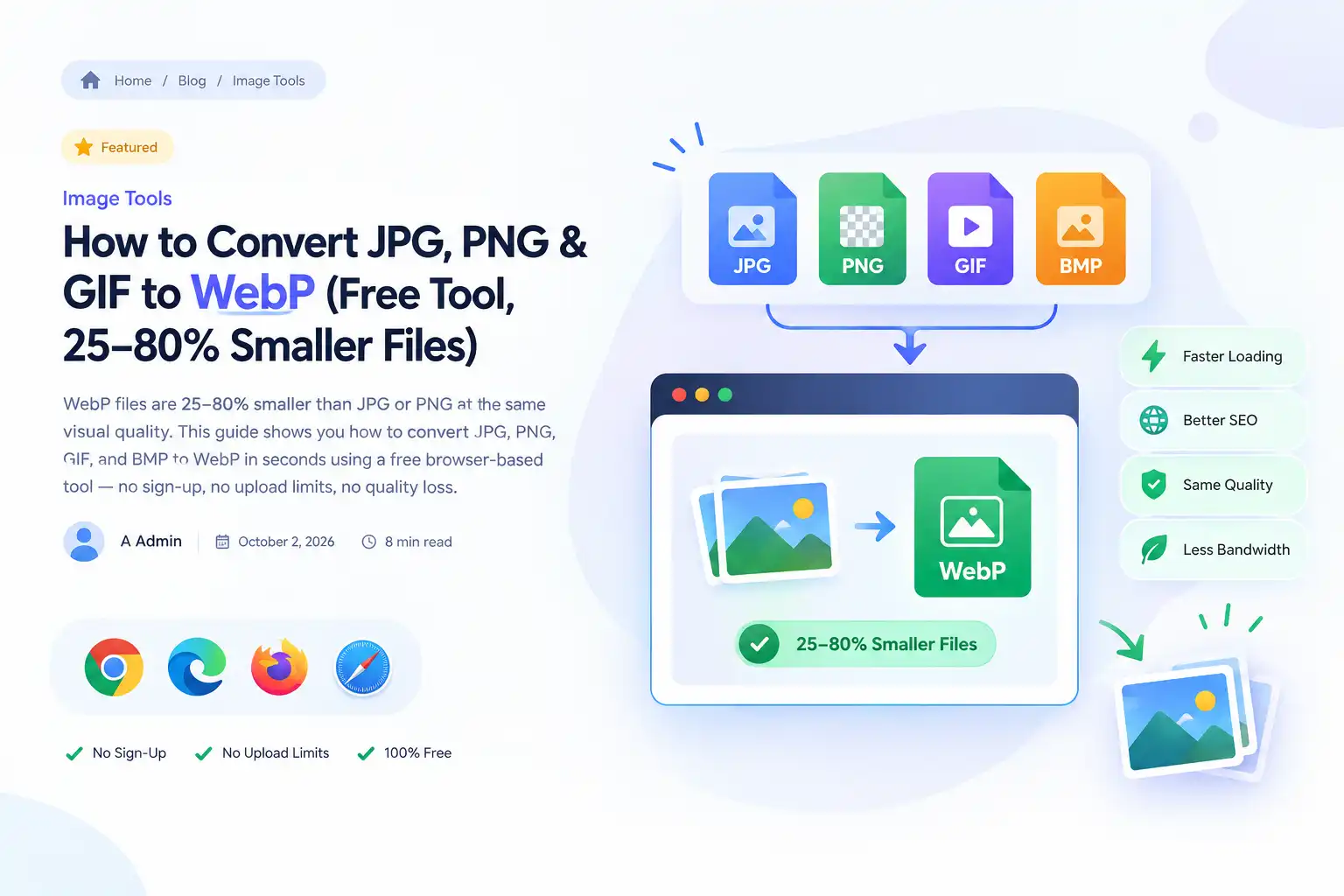
WebP files are 25–80% smaller than JPG or PNG at the same visual quality. This guide shows you how to convert JPG, PNG, GIF, and BMP to WebP in seconds using a free browser-based tool — no sign-up, no upload limits, no quality loss.
Why Your Website Is Slower Than It Should Be (And How One Format Change Fixes It)
If your pages feel sluggish, your images are probably the culprit. Images often make up more than half of a typical webpage's total weight. And if those images are still saved as JPG, PNG, or GIF, you are shipping files that are 25–80% larger than they need to be.
The fix is simpler than you think: convert your images to WebP.
WebP is a modern image format developed by Google that delivers the same visual quality as JPG or PNG — but at a dramatically smaller file size. It supports lossy and lossless compression, transparency (alpha channel), and even animation. Every major browser — Chrome, Edge, Firefox, and Safari 14+ — supports it natively. In 2026, there is almost no reason not to use WebP for web delivery.
This guide walks you through exactly how to convert JPG, PNG, GIF, and BMP images to WebP using a free online tool — CoreToolSpace Image to WebP Converter — with no sign-up, no watermarks, and no daily limits. You'll also learn when to use WebP, when not to, and how to avoid the most common conversion mistakes.
What Is WebP (And Why It Beats JPG and PNG for the Web)
WebP was introduced by Google in 2010 as a purpose-built format for the web. Unlike JPG (which only does lossy compression) or PNG (which only does lossless), WebP does both — and it does them better.
Here's how WebP compares to the formats you're probably using right now:
| Feature | WebP | JPG | PNG |
|---|---|---|---|
| Compression type | Lossy + Lossless | Lossy only | Lossless only |
| Typical file size | Smallest | Moderate | Largest |
| Transparency support | Yes (alpha) | No | Yes |
| Animation support | Yes | No | No |
| Browser support | 96%+ (all modern) | Universal | Universal |
| Best for | All web images | Photos | Logos, UI, transparency |
The numbers are hard to argue with:
- WebP produces files 25–35% smaller than JPEG at equivalent visual quality for photographs.
- For lossless graphics (logos, icons), WebP is about 26% smaller than PNG.
- In real-world page load tests, WebP improved Page Load Time by 21% compared to compressed JPEG.
- WebP can achieve compression ratios of 25–70% smaller than JPG and PNG in many cases, depending on content type.
For a typical website with 20–30 images per page, that translates to hundreds of kilobytes saved per page load — and measurable improvements in Core Web Vitals, especially Largest Contentful Paint (LCP).
When You Should Convert to WebP (And When You Shouldn't)
WebP is the right choice for most web images, but there are a few edge cases to be aware of.
Convert to WebP When:
- You are publishing images on a website or web app. WebP is the modern default for web delivery.
- You are using JPG photos and want smaller files. WebP's lossy mode beats JPG on compression efficiency.
- You are using PNG graphics (logos, icons, UI elements) and need transparency. WebP preserves alpha channels.
- You want animated graphics without GIF's bloat. WebP animation is significantly smaller than GIF.
- You are optimizing for Core Web Vitals and page speed. Smaller images directly improve LCP and reduce bandwidth costs.
Keep the Original Format When:
- You need archival-quality masters for editing. Keep your original JPG/PNG/TIFF masters. WebP is for delivery, not for re-editing.
- You need maximum compatibility with extremely old software. Some legacy desktop applications don't open WebP files. For web delivery, this is rarely a concern.
- The file is already WebP. Re-encoding a WebP to WebP adds compression artifacts without meaningful size savings. That's why our converter rejects already-WebP files with a clear message.
How to Convert Images to WebP in 4 Steps (Free Online Tool)
Here's the fastest, most private way to convert JPG, PNG, GIF, or BMP to WebP — no software installation, no account, no upload to a third-party server you don't control.
Step 1: Go to the Image to WebP Converter
Open CoreToolSpace Image to WebP Converter in your browser. The tool runs directly in your browser, so your images never leave your device.
Step 2: Upload Your Images
Click the upload area or drag and drop your files. You can upload up to 10 images per run, with a maximum of 10 MB per file and 15 MB combined. Supported input formats:
- JPG / JPEG — photographs, blog images
- PNG — graphics, logos, screenshots with transparency
- GIF — simple animations (static frame will be converted)
- BMP — uncompressed bitmaps
Step 3: Set the Quality Level
Use the quality slider to balance file size against visual fidelity. For most images:
- Quality 75–85 is the sweet spot for photographs — visually identical to the original, but significantly smaller.
- Quality 50–70 works well for images where file size is critical (thumbnails, background textures).
- Lossless (where applicable) is best for logos, line art, and screenshots with text.
Start at 75 and go lower only if you can't see a difference. You can always re-run with a higher quality if needed.
Step 4: Run and Download
Click Run. The tool converts each image to WebP, reports the total space saved (e.g., "94.4% smaller than the original"), and bundles multiple files into a single ZIP archive. Download links expire within 30 minutes for security.
That's it. Your WebP files are ready to upload to your website, CMS, or CDN.
WebP vs. JPG vs. PNG: A Quick Decision Guide
Still unsure which format to use? Here's the short version:
| Your Image Is… | Use This Format | Why |
|---|---|---|
| A photograph (blog, product, hero) | WebP (lossy, quality 75–85) | Smallest file, best compression |
| A logo or icon with transparency | WebP (lossless or lossy with alpha) | Preserves transparency, smaller than PNG |
| A screenshot with text | WebP (lossless) | Sharp text, no compression artifacts |
| A simple animation | WebP (animated) | Lighter than GIF |
| A master file you'll edit later | Keep as PNG or TIFF | Lossless, editable |
| An image for email or print | JPG or PNG | Universal compatibility |
For web delivery, WebP wins in almost every scenario. The only time you should serve JPG or PNG is when you need to support a legacy client that doesn't understand WebP — and that's increasingly rare in 2026.
Common Mistakes to Avoid When Converting to WebP
Even with a good tool, these mistakes can undermine your results:
1. Converting already-oversized images. If your source is a 4000px image and you're displaying it at 600px, resize first. Converting a huge image to WebP will shrink it, but it will still be much larger than necessary.
2. Using too-low quality. Quality 50 might look fine on your monitor, but it can introduce visible banding on gradients and photos. Start at 75 and only go lower if you've compared side by side.
3. Expecting WebP to fix bad source images. WebP is a compression format, not a quality enhancement tool. A blurry or noisy source will produce a blurry or noisy WebP.
4. Forgetting about transparency. WebP supports alpha transparency, but only if you enable it. Most quality converters handle this automatically, but always verify that transparent PNGs still have transparent backgrounds after conversion.
5. Not testing in real browsers. Always load your converted images in Chrome, Firefox, and Safari to confirm they display correctly. WebP is universally supported, but there can be edge cases with very old browser versions.
Frequently Asked Questions
How many images can I convert at once?
Up to 10 images per run, with a combined maximum size of 15 MB. All converted files are delivered in a single ZIP archive, with each file keeping its original name.
Does WebP support transparency?
Yes. WebP supports an alpha channel, so transparent PNG and GIF images keep their transparency after conversion. This makes WebP ideal for logos, icons, and UI elements.
Why was my WebP image rejected?
Files that are already in WebP format are refused, because re-encoding them would not improve quality or reduce size meaningfully. If you need to convert WebP back to JPG or PNG, use a dedicated WebP-to-JPG converter.
Is this tool really free? What's the catch?
Yes, it's completely free with no sign-up, no watermarks, and no daily limits. Files are processed only to create your result and are deleted afterwards. Download links expire automatically within 30 minutes. Nothing is shared or sold.
Will WebP work on all browsers?
WebP is supported by 96%+ of all browsers as of 2026, including Chrome, Edge, Firefox, Safari 14+, and all major mobile browsers. For the rare legacy client, you can serve a JPG fallback using a <picture> element with <source> tags.
Can I convert animated GIFs to WebP?
Yes, WebP supports animation. However, the conversion process may preserve only the first frame depending on the tool and source file. For full animated WebP support, use a dedicated animated WebP converter.
Related Tools on CoreToolSpace
- Image Compressor — Shrink JPG, PNG, and WebP files while keeping quality under your control.
- JPG to PNG Converter — Convert JPG/JPEG images to high-quality PNG instantly.
- AVIF to JPEG Converter — Convert AVIF images to JPEG for universal device support.
- JFIF to PNG Converter — Convert JFIF/JPG images to PNG with transparency support.
- Browse all Image Tools — See the full collection of free image utilities.
Last updated: October 2026
Related posts
View allPassport Photo Tool: Make ID Photos at the Right Size
Get the size, background and framing right for a passport or visa photo, and avoid the common reasons applications get rejected.
Image to Text (OCR): Extract Text From a Photo or Scan
Turn a screenshot, scan or photo into editable text with OCR, and learn what improves accuracy and what still needs proofreading.
Bulk Image Resizer: Resize Many Images Without Uploading
Resize up to 10 images at once free in your browser. Set a width, keep proportions, choose JPG, PNG or WebP, and download all as one ZIP. No upload.
Comments (0)
Be the first to share feedback on this post.