
How to Convert JPG to PNG Without Losing Quality (Free Online Tool)
Convert JPG to PNG online for free with no sign-up and no watermarks. This guide explains when converting JPG to PNG actually helps, when it doesn't, and how to do it in seconds with a browser-based tool that preserves every pixel.
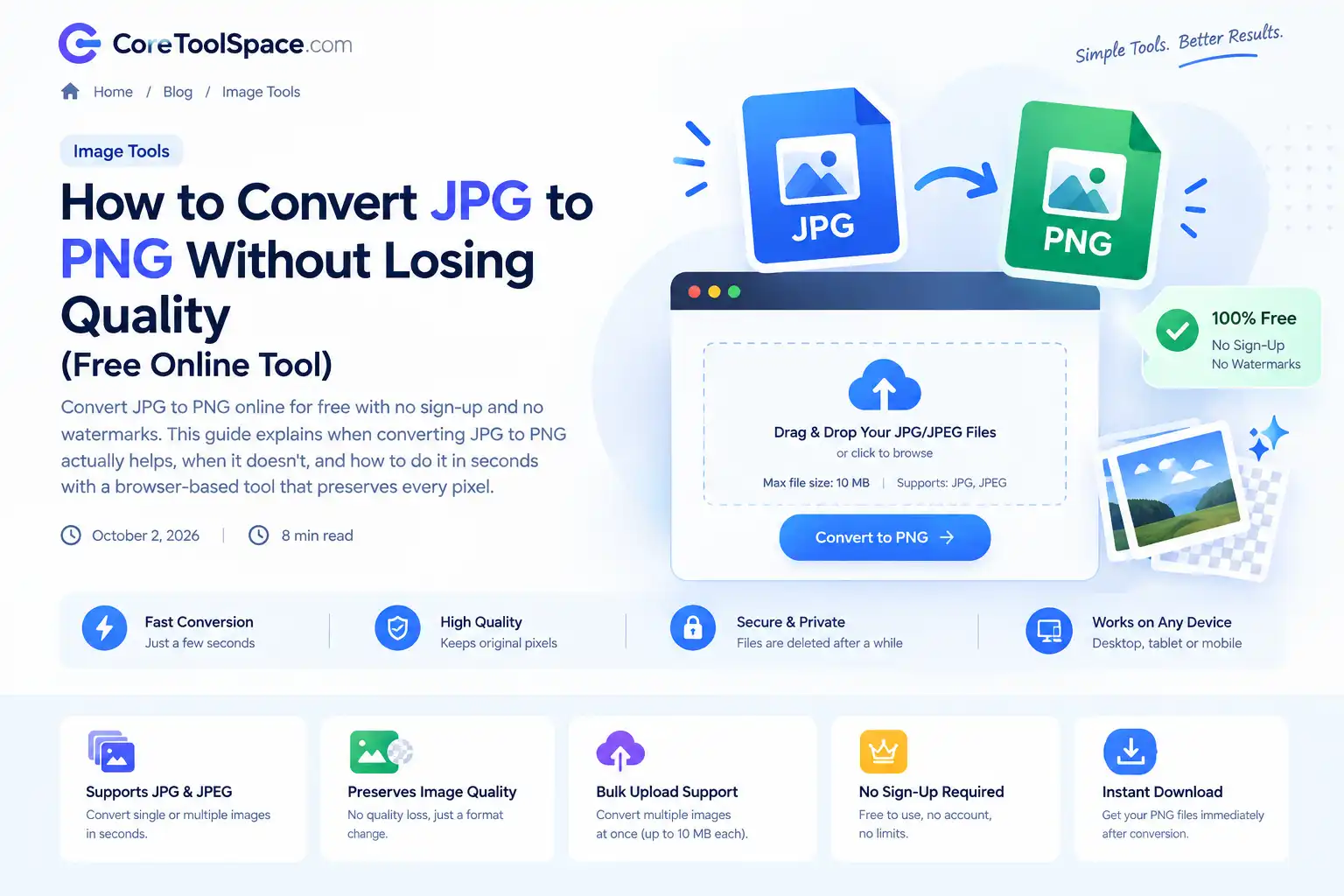
Convert JPG to PNG Online: The Complete Guide
You have a JPG image. You need it in PNG format. Maybe a platform requires PNG, or you are about to edit the image and want to avoid further compression artifacts. Whatever the reason, the conversion itself is simple — but understanding why you are doing it (and when it actually matters) will save you from a common mistake that costs people hours of frustration.
This guide walks through exactly how to convert JPG/JPEG images to PNG using a free browser-based tool — CoreToolSpace JPG to PNG Converter — and explains when PNG is the right choice, when it is not, and what to expect from the output.
What Actually Happens When You Convert JPG to PNG
Let’s clear up a myth first: converting JPG to PNG does not improve image quality.
JPEG is a lossy format. When the image was first saved as a JPG, the encoder permanently discarded some image data — fine details, subtle gradients, sharp edges — to make the file smaller. That data is gone. It is not hidden anywhere inside the JPG. It is deleted.
PNG is a lossless format. It preserves whatever you give it, pixel for pixel. So when you convert a JPG to PNG, the PNG faithfully stores the image exactly as it exists now — including any compression artifacts the JPG already has. The file gets bigger, but the image does not get sharper[reference:0].
What you gain from conversion:
- A lossless container. If you edit the PNG and save it again as PNG, no further quality is lost.
- The ability to add transparency. JPG does not support transparent backgrounds; PNG does.
- Compatibility with platforms, editors, or print workflows that require PNG.
What you do not gain:
- Recovered detail. The JPG already threw it away.
- Sharper text or cleaner edges. If the JPG looks soft, the PNG will look equally soft — just larger.
This is the single most important thing to understand before converting. If your goal is “make this JPG look better,” PNG will not do it. If your goal is “prepare this image for editing, transparency, or a PNG-only platform,” then yes — convert.
When You Should Convert JPG to PNG (And When You Shouldn’t)
PNG is not universally better than JPG. It is a different tool for a different job. Here is the practical breakdown.
Convert to PNG When:
- You are about to edit the image. Every time you save a JPG, it re-compresses and adds a new layer of artifacts. Converting to PNG once at the start of your editing workflow stops that generational loss[reference:1].
- You need transparency. JPG cannot store transparent backgrounds. PNG can. If you are extracting a subject, building a logo overlay, or creating a graphic that needs to sit on different backgrounds, PNG is required.
- A platform or client requires PNG. Design handoffs, print shops, certain CMS uploads, and some documentation systems expect PNG.
- You are working with screenshots or text-heavy images. JPG compression creates visible ringing and blur around sharp edges and text. PNG keeps those edges crisp. Note that converting a JPG screenshot to PNG will not fix existing blur, but it prevents further damage if you edit it.
- You need a lossless archive copy. If you want to keep an image for repeated review or future re-editing without accumulating compression damage, PNG is a safe container.
Keep the JPG When:
- You are publishing a photo on the web and file size matters. A PNG of a photograph is typically 3–5 times larger than the original JPG, with no visible quality benefit[reference:2].
- You are sharing via email or social media. Most platforms re-compress images anyway. Sending a massive PNG just means slower uploads and no real gain.
- The JPG is already the final deliverable. If you are not editing it, not adding transparency, and not required to use PNG, converting is pointless.
- You need the smallest possible web image. For web delivery, WebP is the better choice: smaller than JPG, supports transparency, and widely supported. PNG is not a web performance format for photos.
JPG vs PNG: Quick Comparison
| Feature | JPG | PNG |
|---|---|---|
| Compression | Lossy | Lossless |
| Transparency | No | Yes (alpha channel) |
| Best for | Photographs, web images | Editing, graphics, logos, screenshots |
| Typical file size | Smaller | Larger (especially for photos) |
| Re-saving effect | Degrades quality each save | No quality loss on re-save |
| Browser support | Universal | Universal |
For web delivery, neither is optimal anymore. WebP beats both on size and capability. But for editing workflows and transparency-dependent assets, PNG remains the standard.
How to Convert JPG to PNG in 3 Steps (Free, No Sign-Up)
The conversion itself takes seconds. Here is the exact process using the CoreToolSpace JPG to PNG Converter.
Step 1: Upload Your JPG
Open the converter page and drag your JPG or JPEG file into the upload area, or click to browse. The tool accepts files up to 10 MB. If you have multiple images, you can process them one at a time or in sequence.
Step 2: Run the Conversion
Click Run. The converter decodes the JPG to its full pixel data and re-encodes it as a lossless PNG. The output keeps the original width, height, and color content. No quality slider is needed — PNG is lossless by definition, so there is only one correct output: the exact pixels the JPG contained[reference:3].
Step 3: Download the PNG
Your converted PNG is ready immediately. Download it and use it in your editing workflow, upload it to the platform that requires PNG, or archive it as a lossless copy. The download link expires automatically after a short period for security.
Important: What Conversion Does Not Do
Because this is the most misunderstood part of JPG-to-PNG conversion, let’s state it plainly:
- It does not add transparency. The original JPG had a solid background. The PNG will have that same solid background. You can add transparency later in an image editor, but the converter does not invent it.
- It does not make the file smaller. Expect the PNG to be larger than the JPG — often significantly larger for photographs.
- It does not “uncompress” the JPG. The compression artifacts in the JPG are now permanently part of the image. PNG preserves them faithfully.
- It does not improve resolution or sharpness. A 1200×800 JPG becomes a 1200×800 PNG. No upscaling, no enhancement.
If any of these are what you actually need, look for a different tool: a background remover, an image upscaler, or a WebP converter for web performance.
Frequently Asked Questions
Is converting JPG to PNG lossless?
Yes. The PNG stores the decoded image without discarding additional detail. However, “lossless” means it preserves whatever the JPG already contains — including any compression artifacts from the original JPEG encoding. It does not restore lost quality.
Will the PNG file be smaller than the JPG?
Almost never for photographs. PNG is lossless, so photo files are typically 3–5 times larger than the source JPG. For graphics with flat colors and sharp edges, the size difference is smaller. Use PNG when quality or transparency matters more than file size.
Can I convert PNG back to JPG?
This tool goes one way, from JPG to PNG. Converting PNG back to JPG requires a dedicated PNG-to-JPG tool. Note that going PNG → JPG will introduce lossy compression, so if you need to go back and forth, keep the PNG as your working master.
Does the converted PNG have a transparent background?
No. JPG files do not support transparency, so the converted PNG keeps the same solid background the original JPG had. You can add transparency afterward using an image editor that supports alpha channels.
How many images can I convert at once?
The CoreToolSpace JPG to PNG Converter processes one image per run. For batch conversion, you can run the tool multiple times. Each conversion is independent and unlimited.
Are my files kept on the server?
No. Uploaded files are used only to produce your PNG and are deleted after processing. Download links expire automatically. Nothing is shared, sold, or retained beyond the conversion session.
Should I use PNG or WebP for my website?
For web delivery, WebP is generally the better choice: it is smaller than both JPG and PNG while supporting transparency and animation. PNG is the better choice for editing workflows, print preparation, and situations where a platform specifically requires PNG. If you need smaller web images, convert to WebP instead.
Related Tools on CoreToolSpace
- Image to WebP Converter — Convert JPG, PNG, GIF, and BMP to tiny WebP files for faster websites.
- Image Compressor — Shrink JPG, PNG, and WebP files while keeping quality under your control.
- AVIF to JPEG Converter — Convert AVIF images to JPEG for universal device support.
- JFIF to PNG Converter — Convert JFIF/JPG images to high-quality PNG instantly.
- Browse all Image Tools — See the full collection of free image utilities.
Last updated: October 2026
Related posts
View allPassport Photo Tool: Make ID Photos at the Right Size
Get the size, background and framing right for a passport or visa photo, and avoid the common reasons applications get rejected.
Image to Text (OCR): Extract Text From a Photo or Scan
Turn a screenshot, scan or photo into editable text with OCR, and learn what improves accuracy and what still needs proofreading.
Bulk Image Resizer: Resize Many Images Without Uploading
Resize up to 10 images at once free in your browser. Set a width, keep proportions, choose JPG, PNG or WebP, and download all as one ZIP. No upload.
Comments (0)
Be the first to share feedback on this post.